As you know, you can add one or more eSignature in your proposal/template.
Assign Signee to eSignature
Once a signature is added to your proposal, it would be assigned to client contact(s) and you can change it to be assigned to an internal contact (as appropriate).
There are two ways to assign eSiganture to client or proposer side.
When drag-dropped in the editor, you can assign eSignature to
a) A Role or
b) An Individual
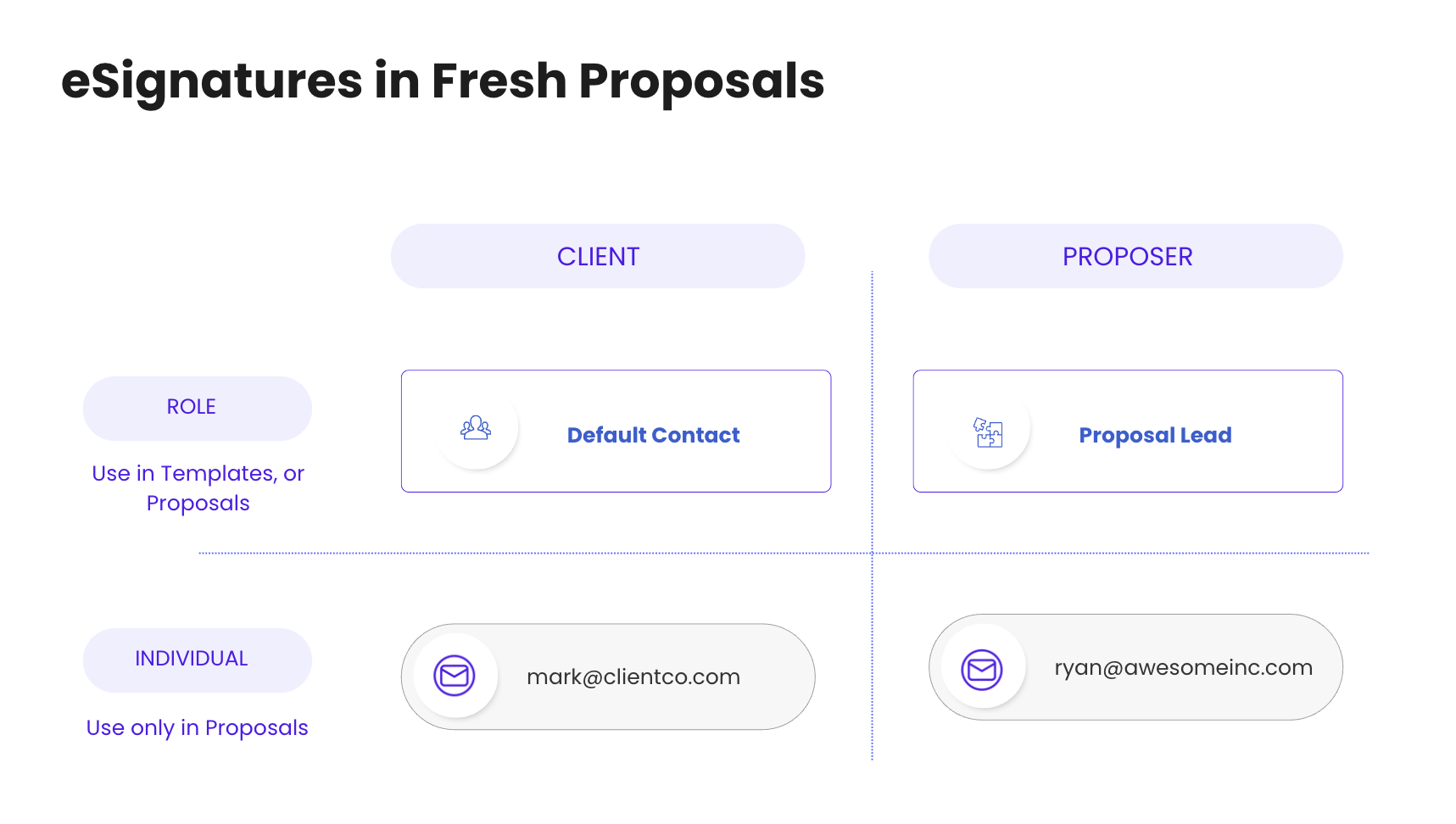
Typically assigning eSignature to a Role helps you automate who can sign the document. When you assign a signature to role within a template, you can simply say who will be the default client contact or proposal lead and the signature will be assigned to the person who is assuming respective role.
[A] Auto-assignment of signatures when a proposal is created using template
[B]. Allow signee to be changed without editing proposal
Let’s look at the two use-cases one by one.
[A] Auto-assignment of signatures when a proposal is created using template
The first use case is straightforward. Typically a proposal template has single client contact and a proposer as signatories. Previously, template editor would not allow assigning a signature to any contact. Users were able to assign a signature to the desired contact only in the proposal editor. So even if you have a template that does not require any change, you had to open it in the editor in order to assign signature to proposer or desired client contact.
Now, this feature automatically assigns signature to the contact identified by the ‘Proposal Role’, there is no need to open a proposal editor to assign the signature.
It is particularly useful for companies who have a templated proposals/ offers/ contracts/ NDAs to get signed and they just need to select contact while creating the document from template and send it right away.
[B]. Allow signee to be changed without editing proposal
The second use case is about allowing changes to the signee (signing authority).
Quite a few times you would know & interact with one (or more) contacts-in-the-front of a prospect/client. However s/he may not be the decision maker. Typically, as a proposer you get the details of decision makers (including approving person/ authority) during initial interactions to include the right set of representatives in your proposal. In reality, there are companies who keep the vendor selection committee opaque; so you would not know exactly who is going to make the decision, or sign the proposal/contract/agreement till it reaches the final stages.
Even if you invite/include Contact-A, Contact-B and Contact-C of a new client, to your proposal, you tend to highlight say Contact-A as a signee in your proposal (as some of users said, it is typical because s/he is your first contact and you have to include someone in the document, with an intention to quickly send the proposal & convert it). Contact-A views the proposal and informs you that s/he can’t sign the document because s/he is not authorized to do so. You will need to mark Contact-B or Contact-C as the signee.
So far, to change this in Fresh Proposals, you would need to unlock, reopen the document for editing and select-set the right contact as a signee.
How is this going to be addressed?
While the solution to the above problem is twofold and in this update we have included the first part of it and it addresses specific use-cases. We are introducing Proposal Roles for both
- Client side (default client contact)
- Proposing side (proposal lead)
While creating a proposal, you can identify the right contact & assign them respective roles.
You can identify from multiple contacts for a given client, who is going to be the default contact and you assign him the role as Default Contact. Even if the identified person is unable to sign the document, you can mark other client-contact (as a default contact) to sign the document.
Set Roles while creating proposal
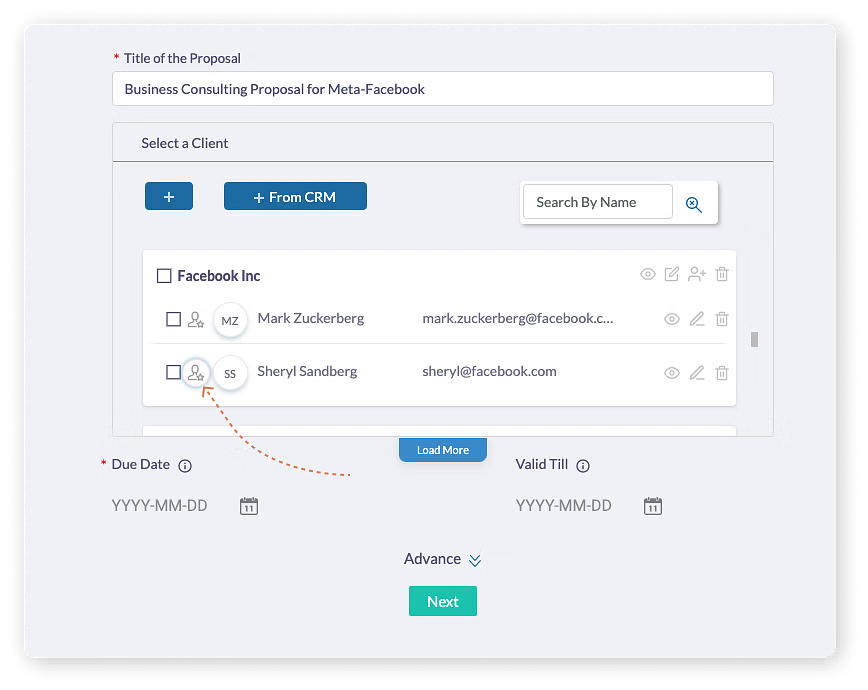
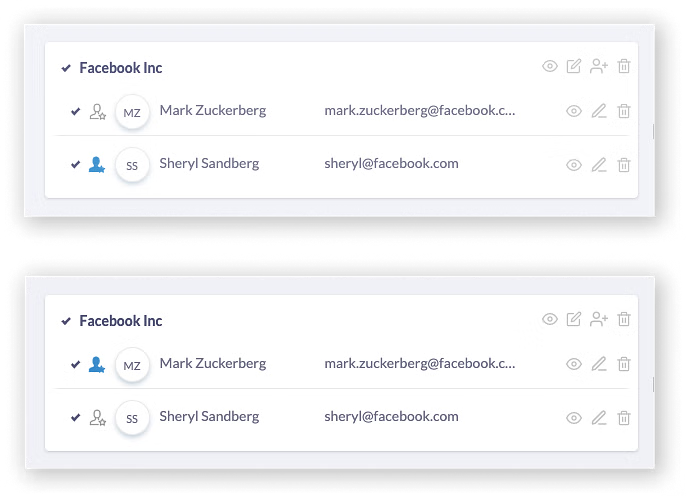
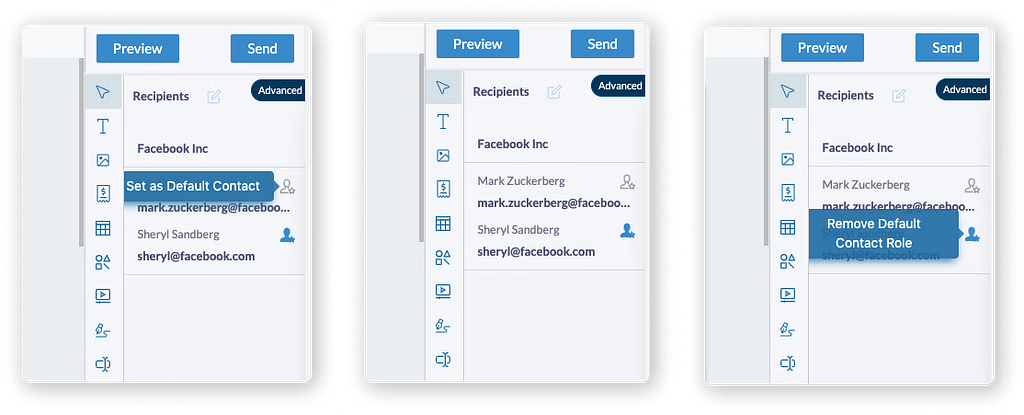
You can set it to desired person from multiple client contacts by simply clicking on this icon (shown in the filled blue color). Basically the dark filled colored icon indicates the Default Contact in case of client and the Proposal Lead in case of proposer.
Set a role as proposal lead
You will notice the proposal lead field under the Advanced button highlighted below.
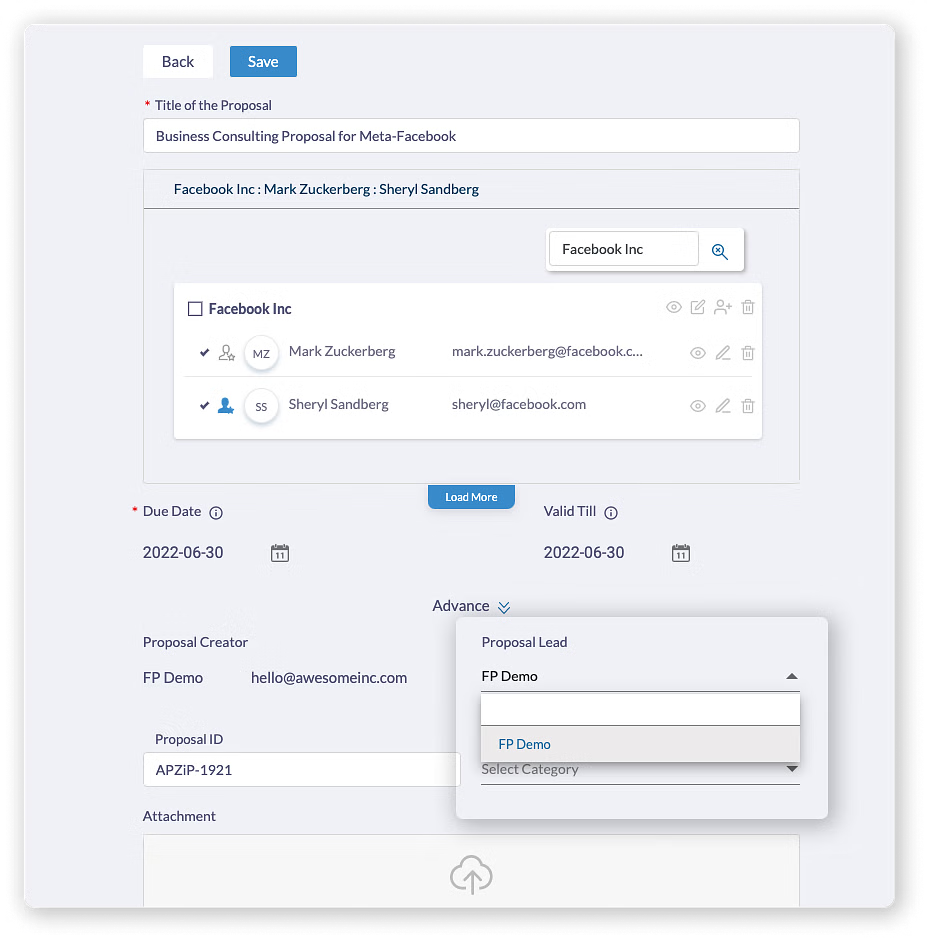
Assigning signature to the role
To assign a signature to a role one needs to use an editor. It can be done in the proposal as well as template. Once you set signee to roles in template, you don’t have to set those again in the proposal.
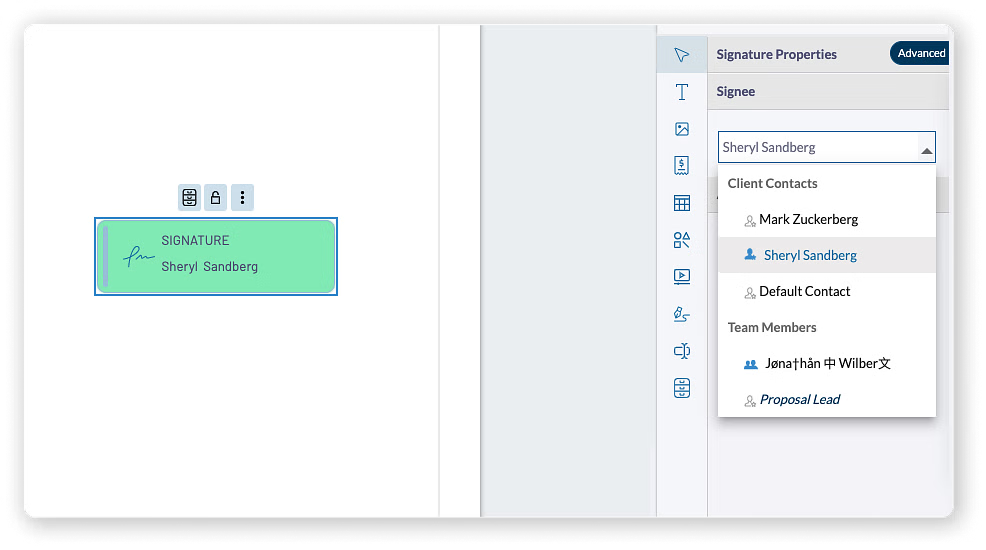
This is how to assign signature to the Default Contact
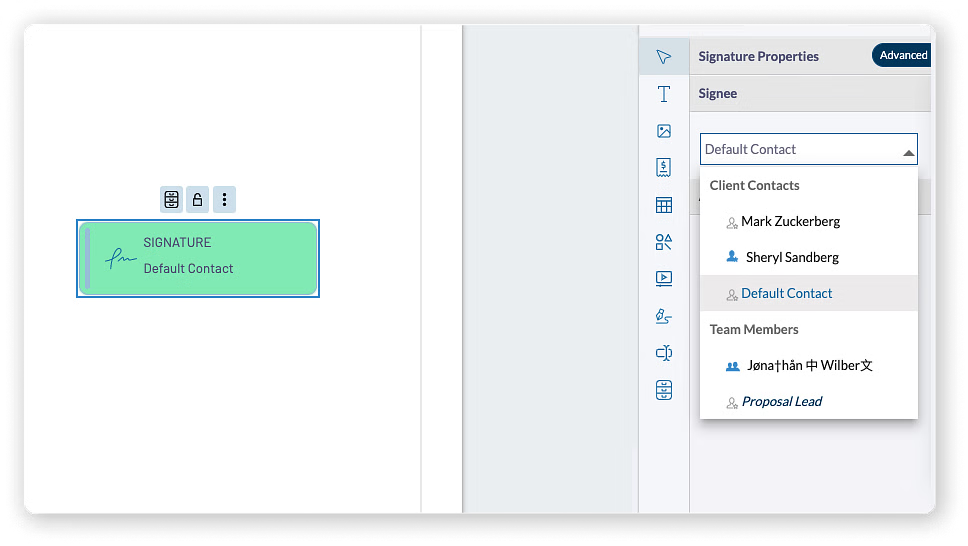
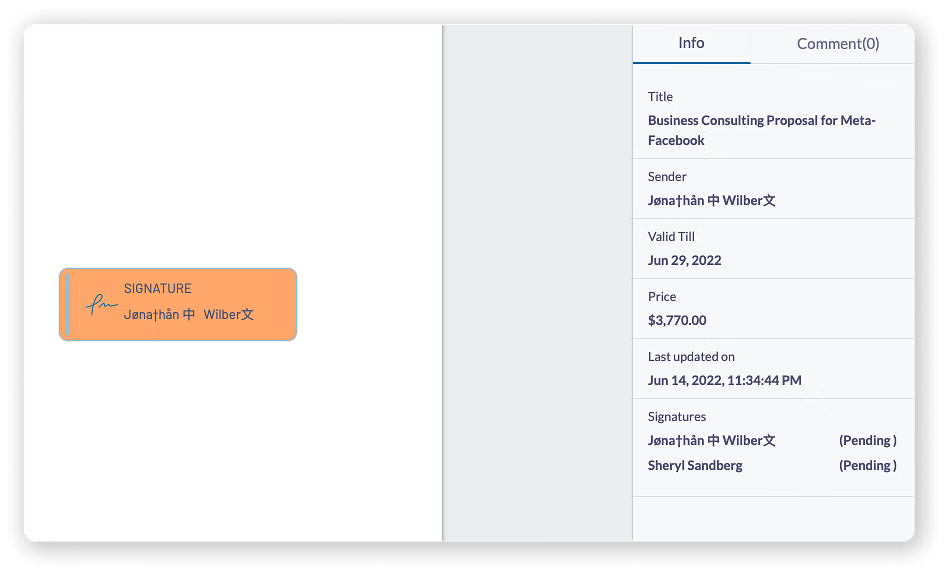
Though in the editor, signee appears as a role, in the proposal preview as well as for the client view, signature box will be displayed as it is assigned to the specific person acting as the Default Contact.
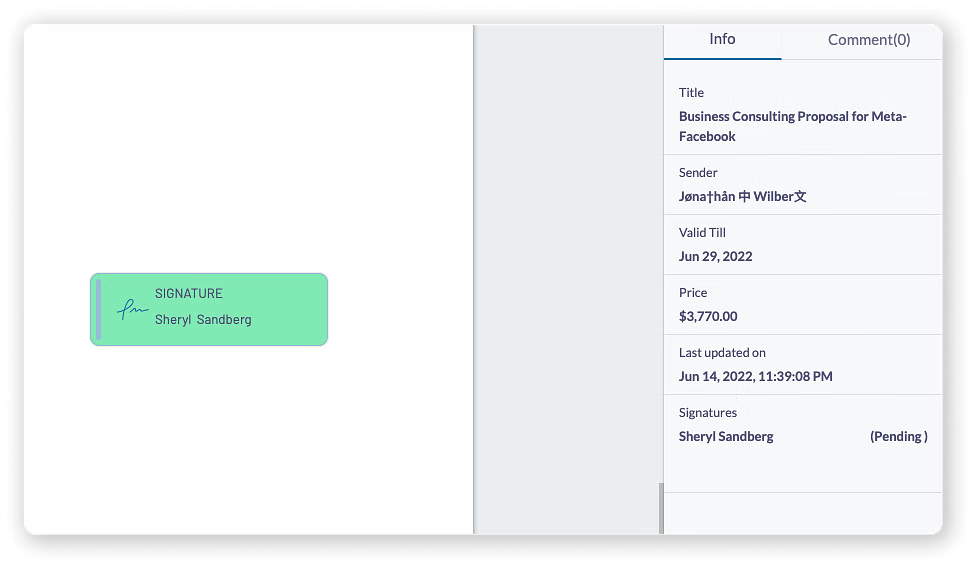
If you set Mark Zuk as a default contact, he will be displayed appropriately as a signee in the document for your client.
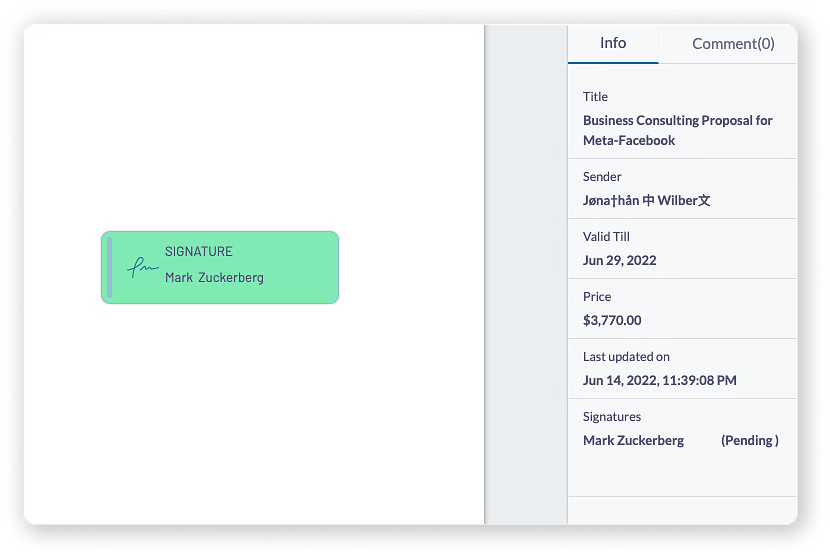
You can also assign a signature to a specific individual . Remember this is like the existing way of assigning signature – meaning, it is not assigned to the role. Thus changing the Default Contact role from one person to another, will not change the signee, in this case.
Proposal Lead
Similarly, you can identify one person from multiple team members in your company who is going to lead the proposal from your side. Even if the identified person changes, you can still have another colleague taking over & leading the proposal & signing it on behalf of your company.
Assign signature to Proposal Lead in editor
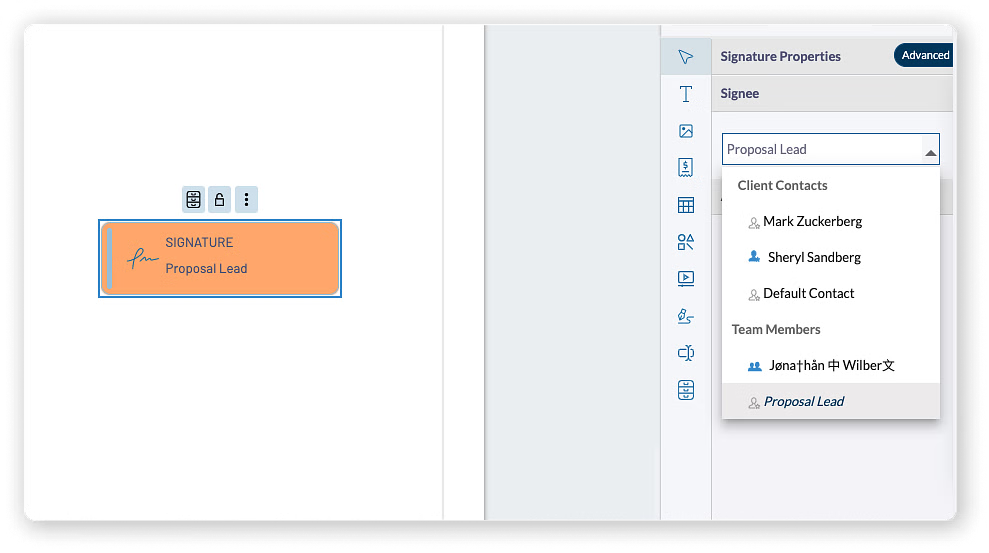
In the preview & for the client, the signee will be displayed as whoever is set as proposal lead
Inline Assignment within Editor
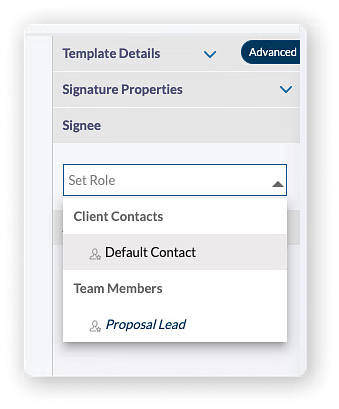
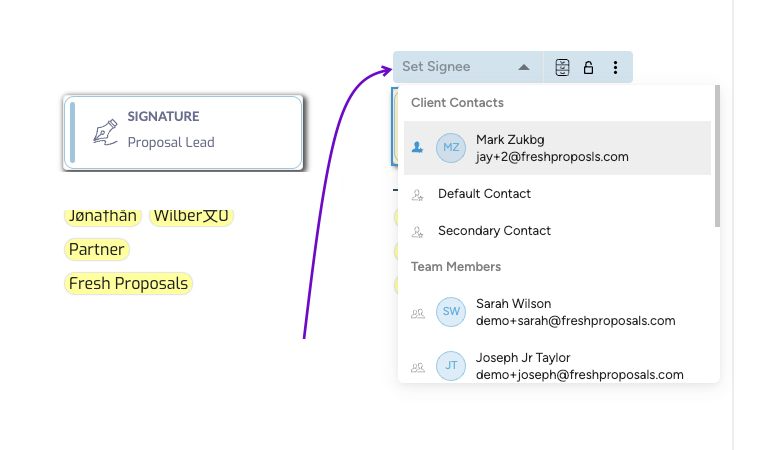
You can also assign signature to role or individual inline. For a signature box added to the editor, as you click on the signature box, you will see menu on the top. Clicking on the 'Set Signee' will display a dropdown list.
The dropdown list has two parts
a). Client Contacts : It includes role: Default Contact and individual client contacts added to this proposal
b) Proposer-side Contacts : It includes role: Proposal Lead and individual team members from proposing team.
To change default contact role in Proposal Editor
If you have set the default role while creating a proposal, you can still set it, unset it or change from one contact to another in Proposal Editor. Remember, only if you have a signature in the document and it is assigned to default contact, the change of role will be effective.
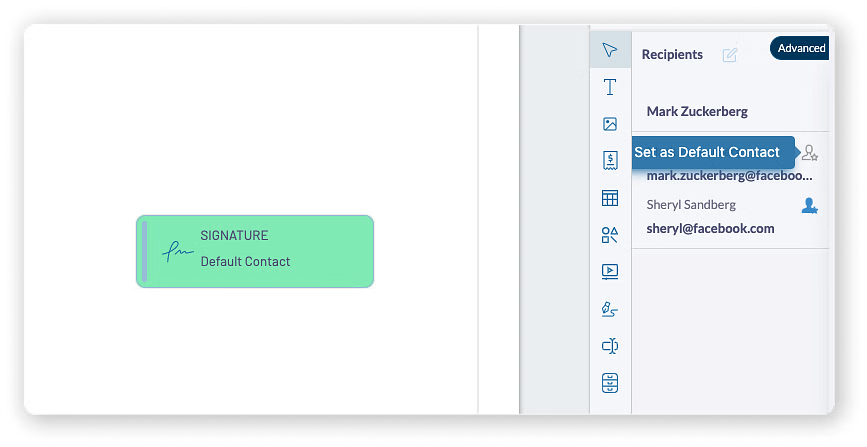
e.g. While creating the document, you have included Mark, Sheryl as client contacts and marked Sheryl as a Default Contact. Due to instructions from the client, you would like to change default client contact from Sheryl to Mark.
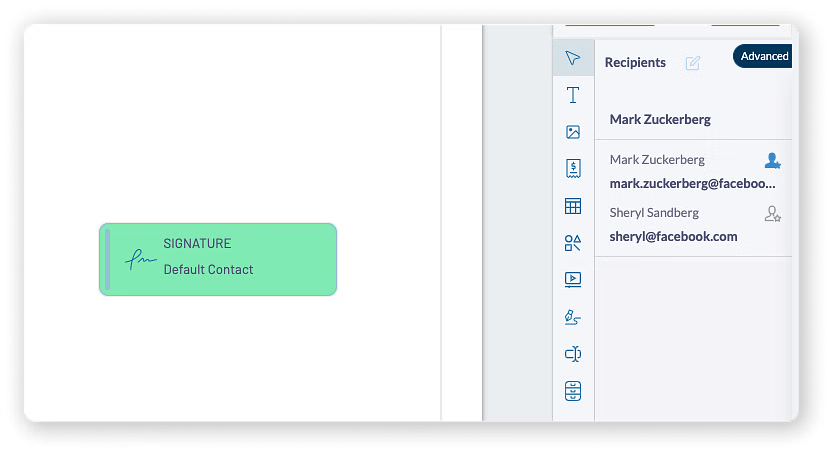
If there is any signature assigned to default client contact, and after changing default contact for a proposal, when Mark views the proposal, he will be able to sign the document and Sheryl will not be able to sign it.
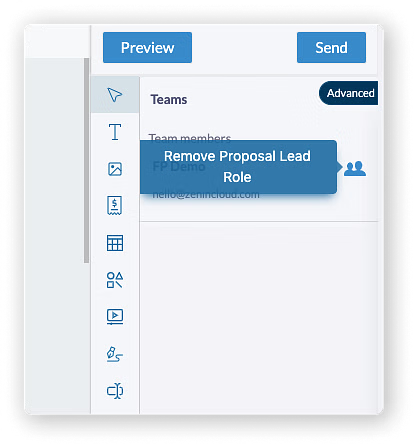
Similarly you can set the proposal lead role in the proposal summary. If a signature is assigned to Proposal Lead and whoever becomes proposal lead can sign the document on behalf of your company.
To change default contact role in Proposal Summary
You can also change the default contact role in the proposal editor. Clicking on the signature will allow you to assign the signature to desired individual ‘client contact’ or default client contact (as a role). When you assign a signature to a specific individual, only s/he can sign the document. However when you assign the signature to a role ‘Default Client Contact’, whoever is the default contact for the document can sign the document.
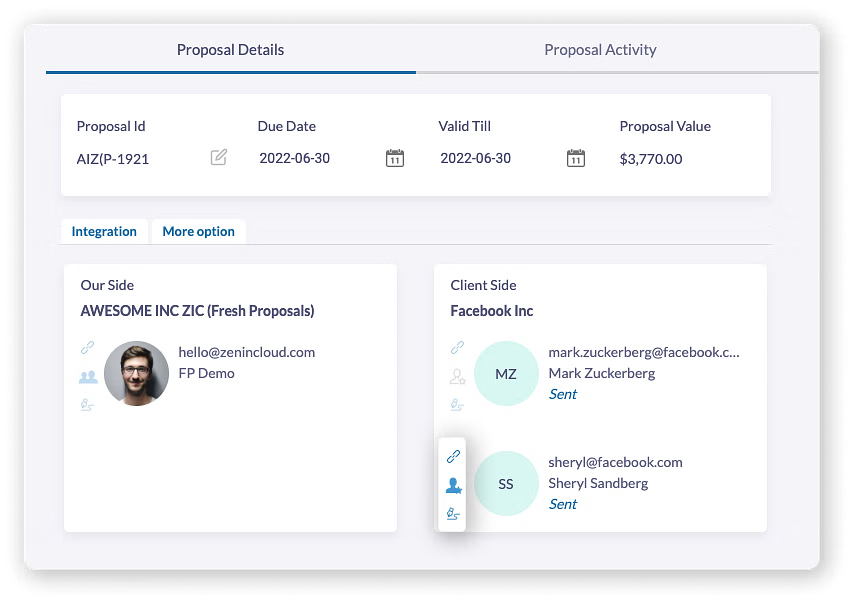
Similarly you can set the proposal lead role in proposal editor and identify one of the team members as proposal lead. And whoever becomes proposal lead and if the signature is assigned ‘Proposal Lead’ role, s/he will be able to sign it on behalf of the company.
Was this article helpful?
That’s Great!
Thank you for your feedback
Sorry! We couldn't be helpful
Thank you for your feedback
Feedback sent
We appreciate your effort and will try to fix the article